
how to organize office documents in file folders usually comes down to one thing: making decisions once, then sticking to them, so you stop re-sorting the same papers every month.
If your filing cabinet feels like a “miscellaneous drawer,” you’re not alone. Most office document messes happen because papers arrive faster than anyone can name them, label them, and put them away, so piles become the default system.
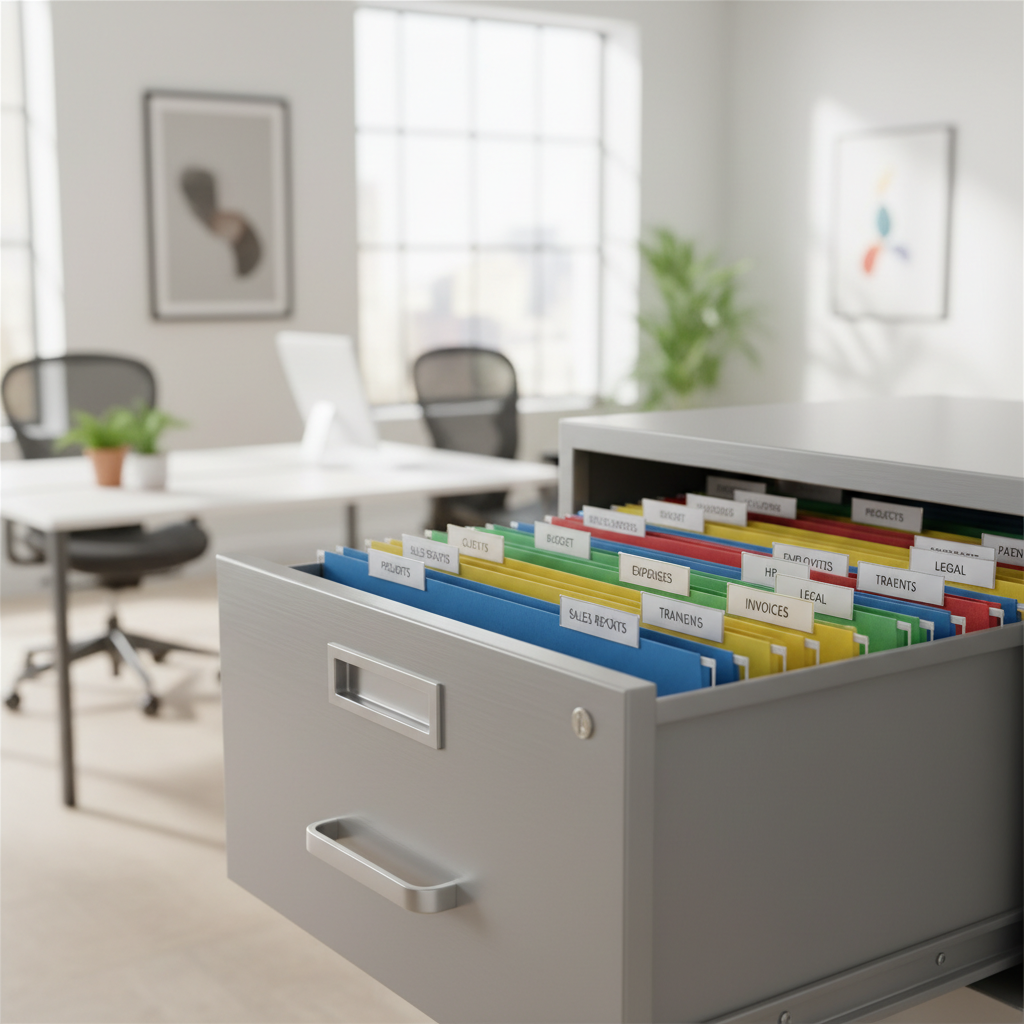
This guide gives you a practical folder structure, a quick “what goes where” table, and a lightweight maintenance routine. Nothing fancy, just a system that holds up when you’re busy.
Pick a filing approach that matches how you search
The best folder structure is the one your brain already tries to use under pressure. In offices, that’s usually one of these three patterns, and you can mix them as long as you stay consistent.
- By function (Finance, HR, Legal, Operations): common for admins and shared cabinets.
- By client/project (Client A, Project Z): common for agencies, consulting, job-based work.
- By time (2026, Q2, April): helpful for recurring documents, audits, and retention.
Most teams do best with “Function → Topic → Year” or “Client/Project → Topic → Year.” It reduces duplicates and helps with retention, because you can close out a year without touching everything else.
Build a simple folder taxonomy (and keep it boring)
A taxonomy is just your naming and nesting logic. If it’s too clever, it breaks the first time someone else files a document. Keep top-level categories small, then get specific one layer down.
A starter set of top-level folders
- Admin & Policies (company policies, templates, internal approvals)
- Finance & Taxes (invoices, receipts, bank, tax filings)
- People (HR) (hiring packets, benefits, training)
- Legal & Compliance (contracts, permits, insurance, licenses)
- Vendors & Purchasing (POs, vendor agreements, warranties)
- Clients/Projects (if you deliver work for others)
Try to limit it to 6–10 top-level sections. If you need 18 categories, it’s a sign you’re filing by “every possible detail” instead of by retrieval.
Decide what belongs in file folders vs. somewhere else
Clutter often comes from filing things that should have been scanned, shredded, or stored digitally. Before you reorganize, set clear boundaries.
According to IRS guidance on recordkeeping, businesses should keep records that support income and deductions, and retention periods vary by document type and situation. If you’re unsure what to keep or how long, consider asking your accountant or attorney.

Use this quick boundary rule:
- File (paper): originals you may need, signed agreements, notices with legal/financial impact, documents required by a regulator, items you cannot easily replace.
- Scan then file or shred: routine correspondence, non-original copies, anything needed short-term but not as an original.
- Don’t file: duplicates, outdated versions, random printouts “just in case.”
A practical “what goes where” table
This table is intentionally simple. You can adapt it, but try not to create a brand-new category for every one-off document.
| Document type | Suggested folder path (paper) | Naming tip | Common mistake |
|---|---|---|---|
| Vendor invoices | Finance & Taxes → Accounts Payable → 2026 | Vendor + invoice # + date | Filed under the project instead of payable |
| Client contracts | Legal & Compliance → Contracts → Client Name | Client + effective date | Mixing drafts with signed originals |
| Employee onboarding | People (HR) → Personnel Files → Employee Name | Use consistent order (last, first) | Putting HR docs in “Admin” |
| Insurance policies | Legal & Compliance → Insurance → 2026 | Carrier + policy period | Scattered across departments |
| Receipts | Finance & Taxes → Receipts → 2026 → Month | Date + merchant + amount | Loose receipts in random folders |
Set up folders and labels so filing takes seconds
Most people don’t fail at organizing, they fail at maintenance. If filing takes more than a few seconds, you’ll postpone it, then “temporary piles” show up again.
Folder setup that stays usable
- Use a front-to-back order that matches your cabinet: A–Z, 1–12, or by year. Don’t mix schemes in the same drawer.
- Create a “Current Year” section: keep active folders in front, archive behind or in a separate drawer/box.
- Standardize label formatting: same case, same separators, same date format (many offices prefer YYYY-MM-DD for sorting).
- Reserve one small “Inbox” folder: papers land there first, then get filed on a schedule.
Key point: your labels should mirror how you talk. If your team says “AP,” don’t label the folder “Accounts Payable” in one place and “Payables” in another.
A 30–60 minute reset process (when things are already messy)
If you’re starting from piles, don’t try to perfect everything on day one. You’re aiming for a stable system, then you refine it when real-world edge cases show up.
- Step 1: Make three quick piles: Finance, People, Legal/Contracts, plus a small “Unknown” pile for odd items.
- Step 2: Pull out obvious duplicates and trash: old drafts, extra printouts, envelopes with no contents.
- Step 3: Create only the top-level folders: don’t build 40 folders yet, start with the big buckets.
- Step 4: File by “good enough” topics: invoices together, contracts together, HR together, receipts together.
- Step 5: Add subfolders where pain appears: if “Receipts” becomes too thick, then split by month.
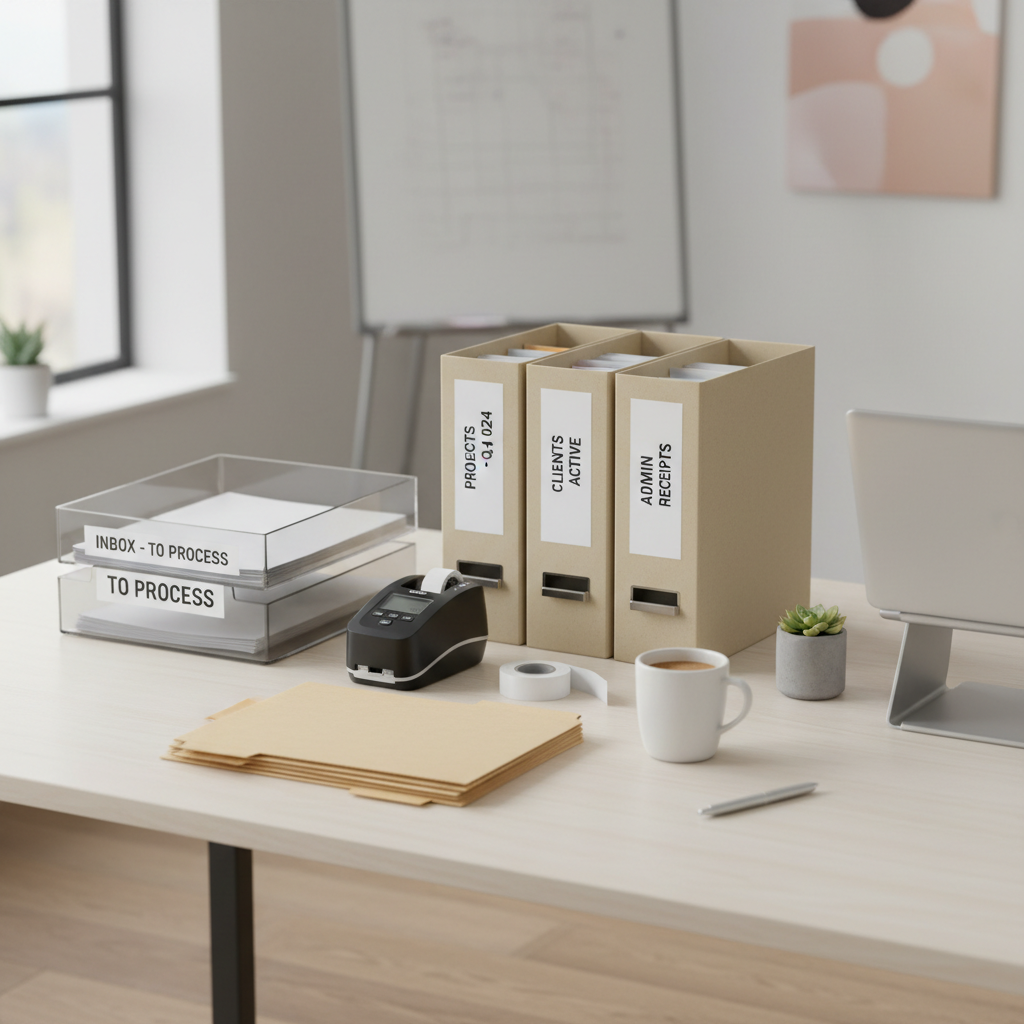
When you hit an “I don’t know where this goes” document, park it in “Unknown” and keep moving. Circle back later, otherwise the whole session stalls.
Common mistakes that make file folders fail
- Too many categories: if people can’t decide in 3 seconds, they’ll avoid filing.
- Mixing active and archived papers: you end up searching twice, and the drawer swells quickly.
- Inconsistent naming: “Contracts,” “Agreements,” and “Client Docs” become three versions of the same thing.
- Storing sensitive info casually: HR and legal documents may require restricted access. If you handle regulated data, review your internal policy or ask a compliance professional.
- No routine: even a great structure collapses without a simple cadence.
Maintenance: a tiny routine that keeps you organized
This is where most “how to organize office documents in file folders” plans either work long-term or quietly die. Keep the routine light and predictable.
- Weekly (10 minutes): empty the paper inbox folder, file or scan what matters.
- Monthly (20 minutes): check the thickest folders, split only if needed.
- Quarterly (30 minutes): move closed projects to archive, confirm labels still match how you search.
- Yearly (60 minutes): create a new year set, archive the prior year, review retention requirements with your accountant or legal counsel if needed.
Quick win: keep a small stack of blank labeled folders and extra tabs in the cabinet, so you never “wait until supplies arrive” to file.
Conclusion: make your system easy to follow, not impressive
A good filing setup feels almost boring: clear categories, consistent labels, and a quick routine. If you want a practical next step, choose your top-level categories today and create a single “Inbox” folder, then spend one short session sorting the first wave. Once you can find documents fast, you can fine-tune the details without the stress.
FAQ
How do I organize office documents in file folders if I share a cabinet with coworkers?
Agree on 6–10 top-level categories and a single naming format for labels, then assign an owner for each section (Finance, HR, Legal). Shared systems work best when someone is accountable for cleanup.
Should I file by date or by subject?
If you usually remember “what it is,” file by subject first and nest by year. If you usually remember “when it happened,” date-first can work, but it tends to confuse mixed teams unless everyone thinks the same way.
What’s the fastest way to clean up a desk full of papers?
Don’t read everything. Make three piles (Finance, People, Legal/Other), remove obvious duplicates, then file into broad folders. Fine sorting can come later once the pile stops growing.
How many folders should I have in a typical small office?
Enough to avoid “Miscellaneous,” but not so many that filing becomes a decision marathon. Many small offices land around 20–40 active folders total, depending on how many projects and vendors they handle.
How do I label file folders so they’re easy to scan?
Use short nouns, keep the first word meaningful, and standardize dates. For example, “Insurance – General Liability – 2026” is easier to scan than a long sentence-style label.
Do I need color-coded folders?
Color can help when categories are very distinct, like HR vs. Finance, but it’s optional. If colors create exceptions or people can’t remember the code, plain folders with great labels often beat a messy color system.
What documents should be kept in a locked cabinet?
HR files, certain legal documents, and anything containing sensitive personal information often belongs in restricted storage. Requirements vary by industry and state, so if you handle regulated data, it’s worth confirming with a compliance or legal professional.
If you’re trying to organize paperwork across a team and you want a more “set it once” approach, it may help to map your categories on one page, then stock matching folders, tabs, and labels so everyone files the same way without overthinking it.